Review
Pixel Thinks Review: Free Image Compressor, Background Remover and PDF Tools
There's a particular kind of frustration that comes with uploading files online. You have the right photograph, the right document, and everything is ready to submit. Then the website rejects it because the image is 350KB instead of 100KB, or because your phone saved it in a format the form doesn't accept.
You search for an image compressor, open a website, upload the file, and discover that downloading the result requires an account. Another tool lets you compress two images before asking you to upgrade.
These are small problems. They shouldn't take half an hour to solve.
That's the kind of work Pixel Thinks is designed for.
Officially called PixelThinks, the website brings together free tools for compressing images, removing backgrounds, resizing photographs, converting formats, and working with PDF files. Everything is accessible through a browser, without installing software or creating an account.
Its main selling point is simple: no subscriptions, no daily usage limits, and no mandatory registration.
But free access doesn't automatically make a tool useful. It still needs to handle common file problems properly, explain its settings, and produce results you can actually use.
So what does Pixel Thinks offer, where does it make sense to use it, and what should you know before processing your files?
What Is Pixel Thinks?
Pixel Thinks is an online collection of image and PDF utilities. Instead of trying to replace a full photo editor, it focuses on smaller tasks that people regularly need to complete.
Imagine you've taken a picture on your phone and need to upload it to a job application. The portal wants a JPG file measuring 600 × 600 pixels, with a maximum size of 100KB.
Your original image might be a 4MB HEIC photograph measuring several thousand pixels across.
To prepare it, you may need to convert the format, crop the picture, resize it, and reduce its file size.
PixelThinks provides separate tools for those steps.
The website currently covers image compression, resizing, format conversion, basic editing, AI background removal, PDF compression, and photo preparation for online forms.
You don't need technical knowledge to understand most of these tools. Their names describe what they do, and the controls focus on the relevant settings.
There's also a distinction worth making about the name. Pixel Thinks and PixelThinks refer to the same website, available at pixelthinks.com. PixelThinks is the official spelling, while Pixel Thinks is the spaced version people may use when searching for it.
The Image Compressor Is Where Most People Will Start
Let's start with the problem that brings many people to file utility websites: making an image smaller.
A photograph taken on a modern smartphone can easily occupy several megabytes. That's rarely an issue when viewing it on your device, but it becomes inconvenient when a website imposes a strict upload limit.
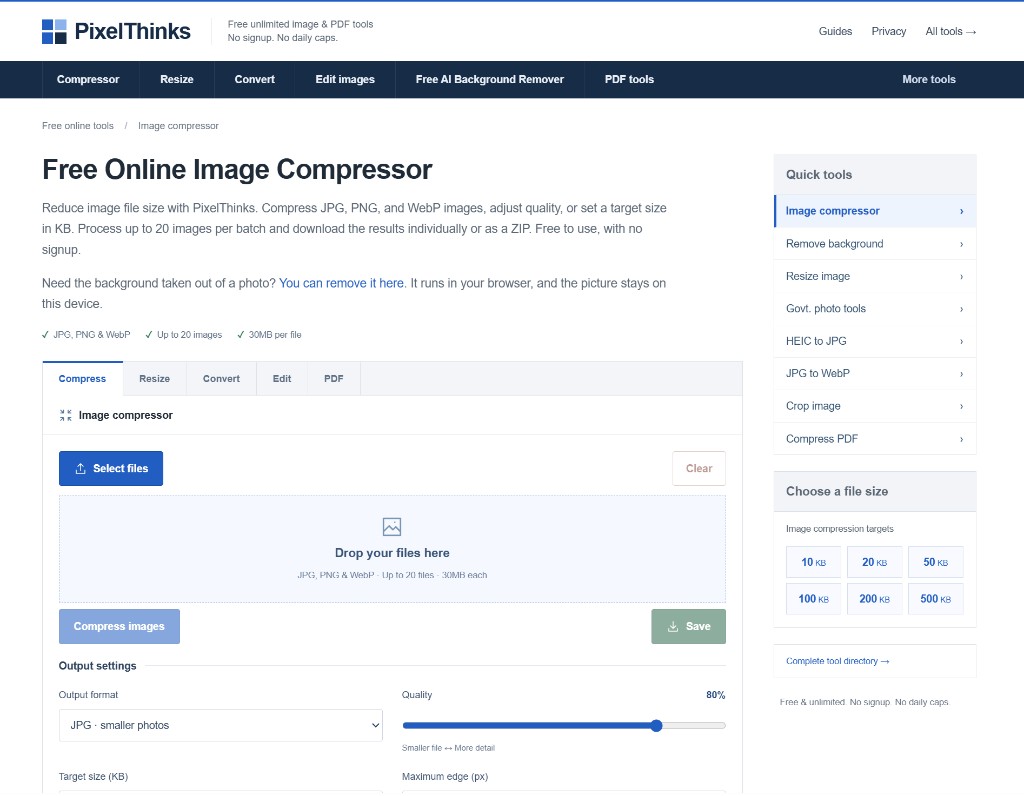
The Pixel Thinks image compressor accepts JPG, PNG, and WebP files.
You can add up to 20 images in one batch, provided each file is no larger than 30MB.
Once you've selected your images, you can adjust the output format, quality, target size, and maximum image dimension.
The most useful setting for many people will probably be Target size (KB).
When an upload must be below 100KB
Suppose an application portal accepts only images smaller than 100KB.
You could try manually reducing JPEG quality, downloading the result, checking its size, and repeating the process until it fits.
That works, but it's unnecessarily tedious.
With PixelThinks, you can enter 100KB as the target and let the compressor attempt to meet that limit.
For JPG and WebP images, it searches for a lower compression quality. If that isn't enough, it can reduce the image dimensions.
PNG works differently because the tool uses lossless PNG encoding. For PNG files, reaching a strict size target may require reducing the dimensions.
There's an important limitation here: a target size is a maximum, not a guaranteed result.
An image that starts below 100KB won't be padded to exactly 100KB. And if the compressor can't reach a very small target, it may return a larger result and indicate that the target wasn't met.
That distinction matters when a form refuses files even slightly above its limit.
PixelThinks also has dedicated pages for common targets, including 50KB, 100KB, and 200KB.
These pages are useful shortcuts when you already know the maximum file size.
What happens to image quality?
Reducing file size always involves some trade-offs, depending on the image format and settings.
JPEG compression can soften fine details, especially around hair, text, and sharp edges. WebP behaves similarly when using lossy compression.
PNG preserves its pixel information at the original dimensions, but shrinking an image to meet a size limit still removes detail.
A sensible approach is to start with reasonable quality settings and inspect the result before downloading it.
For a photograph, check the face and important details. For a screenshot, zoom in on the text.
Getting a file under 100KB isn't particularly helpful if the information inside it becomes unreadable.
AI Background Removal Without Installing an Editor
Background removal used to be one of those jobs that pushed people toward full image-editing software.
You needed to select the subject, carefully work around the edges, remove unwanted areas, and export a transparent image.
AI has made the basic process much easier.
Pixel Thinks includes a free AI background remover that separates a subject from its surroundings. The tool runs in your browser, and the photograph is not sent to PixelThinks for that step.
Where is it useful?
Consider someone selling handmade products online.
They've photographed a product on a kitchen table, but the background looks distracting. Removing it can help them prepare a cleaner image for a catalog, product listing, or promotional graphic.
Another example is creating social media thumbnails.
You might want a photograph of a person without the original background so you can place the subject over a different design.
Transparent backgrounds make that possible.
The same idea applies to presentations, profile graphics, website images, and simple marketing materials.
What can go wrong?
AI background removal still struggles with some photographs.
Fine hair, transparent objects, blurred boundaries, and similar colors between the subject and background can leave a rough edge.
A photograph of a person against a plain wall is generally an easier problem than a glass object surrounded by reflections.
The work also uses memory on your device. Large images may take longer on older phones or laptops.
For important images, inspect the subject's edges carefully before using the exported file.
And if you need transparency, keep the result as PNG or WebP. A JPG cannot stay transparent, so a JPG download is placed on the color you picked, or on white.
Resize Images Without Guessing the Dimensions
Image size can mean two different things.
Sometimes you're talking about storage size: 100KB, 500KB, or 2MB.
Other times you mean dimensions: 500 × 500 pixels, 1200 × 800 pixels, or a photograph measuring 3.5 × 4.5 centimeters.
People often confuse these requirements.
Compression deals primarily with file size. Resizing changes the image's width and height.
PixelThinks has a separate image resizing tool for that reason.
You can enter dimensions in pixels, scale by percentage, or work with physical measurements such as centimeters, millimeters, and inches.
The physical measurement options are particularly useful when preparing photographs for documents or printing.
Understanding the fit settings
When the dimensions you're requesting don't match the original image's proportions, the tool needs to decide what to do with the extra space.
PixelThinks provides three fit options.
Contain keeps the whole picture visible within the selected dimensions. Empty space may appear around it.
Cover fills the required dimensions, cropping the edges if necessary.
Stretch forces the picture to the exact dimensions, even if that changes how the subject looks.
For ordinary photographs, stretching is usually the least desirable option.
Imagine turning a wide photograph into a square by stretching it. Faces and objects may appear unnaturally narrow or wide.
Cropping the image first often gives you better control over the composition.
One detail is worth checking when you work in centimeters or inches. The resizer uses DPI to calculate the pixel size, but it does not save that DPI inside the downloaded file. If a print shop asks for DPI metadata, set that in their software.
Converting HEIC, AVIF and Other Image Formats
File compatibility is another common annoyance.
An image opens perfectly on your phone, but a website refuses to accept it because the format isn't supported.
This happens frequently with HEIC photographs from iPhones.
HEIC is designed to store images efficiently, but some applications and upload forms still require JPG.
The PixelThinks HEIC to JPG converter addresses that problem.
You select the HEIC images, choose the JPEG quality, and download converted copies.
The converter supports multiple files, which is convenient when you have several photographs to prepare.
PixelThinks also includes converters for AVIF to JPG, JPG to WebP, BMP to JPG, and TIFF to JPG.
Each format serves a different purpose.
JPG remains widely accepted for photographs and online forms. PNG is useful for graphics requiring transparency. WebP can be a good choice for websites because it often stores photographs more efficiently.
AVIF can offer efficient compression too, although compatibility still depends on the application receiving the file.
One thing to remember: changing a format doesn't automatically make an image smaller.
A converted JPG could actually be larger than the original HEIC file.
If the new file also needs to meet a maximum size, convert it first and then compress it.
Keeping the original image is sensible because conversion can discard metadata or format-specific features. A multi-page TIFF only converts the first page.
PDF Compression: Useful, but Choose the Right Mode
Photographs aren't the only files affected by upload limits.
A scanned document can easily become several megabytes, especially when it contains multiple pages captured at high resolution.
This is inconvenient when an email service or application portal restricts attachment size.
Pixel Thinks includes a PDF compressor designed to reduce document sizes.
It offers two approaches, and understanding the difference is important.
Structure optimization
This mode works with the existing PDF structure.
Its aim is to reduce the file size while preserving document features such as selectable text, links, and form fields.
For an ordinary PDF created from a word processor, this is generally the safer starting point.
Scan compression
Scan compression works differently.
It renders the pages as images and then creates a PDF from those images.
That can help with some image-heavy scanned documents, but it comes with trade-offs.
Selectable text, links, digital signatures, and interactive form fields may be lost.
Imagine compressing a PDF application form and discovering that its fields can no longer be edited. That's the sort of problem you want to avoid.
The PDF compressor accepts files up to 30MB. Scan compression is limited to 20 pages. Password-protected documents aren't supported.
Before compressing an important PDF, save a copy of the original.
Afterward, open the result and check that every page is readable, especially small text, signatures, and scanned details.
Government Application Photos and Signature Files
Anyone who has filled out several online application forms knows that photograph requirements can be surprisingly specific.
One portal asks for a JPG below 50KB. Another specifies 200 × 230 pixels. A third requires a signature image within a particular size range.
Pixel Thinks has dedicated tools and presets intended to help with these requirements.
Its tool directory includes pages for SSC photographs, UPSC photo resizing, Aadhaar photos, and general government form preparation.
The benefit of these tools is that you can start with the kind of task you're trying to complete instead of working out every setting from scratch.
But don't assume that a tool with an exam or government department's name automatically follows the latest official requirements.
Those requirements can change between recruitment cycles or different application portals.
Always check the official instructions before preparing your files.
For example, if a portal requires a particular photograph size, file format, and background color, all three conditions matter.
A file that meets the KB limit can still be rejected because its dimensions are incorrect.
A sensible order is to crop the original photograph, resize it to the required dimensions, compress it if needed, and verify the final file before submitting.
The Smaller Tools Are Worth Knowing About
Not every image problem requires AI or complicated settings.
Sometimes you just want to rotate a sideways photograph, crop out an unwanted object, or obscure part of a screenshot.
PixelThinks includes individual tools for these jobs.
The crop tool lets you select the area you want to keep. The rotate tool corrects an image's orientation.
There are also blur and pixelation tools for hiding selected areas.
For example, you may want to share a screenshot while obscuring a name, phone number, or profile picture.
Be careful with sensitive information, though. Visual blur and pixelation should not be treated as guaranteed secure redaction.
For developers, PixelThinks also offers a Data URI to Image utility. This converts encoded image data into a downloadable image file.
There's an emoji-to-image tool as well, which can be useful when you need an emoji as a graphic rather than a text character.
These aren't the features most visitors will use every day, but having them available avoids searching for another website whenever a small editing task comes up.
Is Pixel Thinks Really Free?
Yes. PixelThinks states that its tools are free to use, without subscriptions, mandatory account registration, or daily usage caps.
That last point needs a little explanation.
Unlimited daily use doesn't mean unlimited file sizes.
The main compressor accepts 20 files per batch and limits individual images to 30MB.
Other tools have their own technical restrictions.
So you can return to the website and process more files without using up a daily quota, but you still need to work within each tool's limits.
The downloads are not locked behind a paid file, and the tools do not stamp a watermark on the result.
For someone who occasionally needs to fix an image before uploading it, that makes the process fairly straightforward.
There's no reason to create an account just to reduce a photograph from 250KB to 100KB.
What About Privacy?
This is an important question whenever you're handling personal photographs or documents.
The image compressor and background remover process files in your browser. The picture does not have to be sent to PixelThinks to run those jobs.
That doesn't mean the website makes no network requests at all.
The site still loads its pages, scripts, and analytics.
If you're handling sensitive material, read the PixelThinks privacy policy and check the tool you are about to use.
It's also worth remembering that browser-based processing uses your device's resources.
Large photographs, and the background remover in particular, may work smoothly on one laptop and struggle on a phone with limited memory.
Where Pixel Thinks Makes Sense, and Where It Doesn't
The main appeal of Pixel Thinks is that it handles specific file tasks without asking you to learn a complicated editing application.
For students and job applicants, the image-size presets and photo resizing tools may be particularly useful.
Website owners can use the compressor and format converters when preparing graphics for publishing.
Small online sellers may find the background remover useful for basic product images.
And for everyday office work, reducing a PDF or converting a phone photograph can be done without installing another program.
There are limits to this approach.
PixelThinks isn't intended to replace a full photo editor for detailed retouching, a professional PDF editor for complex document changes, or desktop software for thousands of files.
The background remover may need a careful look around hair, glass, and similar colors. Compression can reduce image quality. Scan compression on a PDF can remove selectable text.
Those limitations don't make the tools useless. They simply mean you should choose the appropriate tool for the job and inspect the result.
Frequently Asked Questions
Is Pixel Thinks the same as PixelThinks?
Yes. Pixel Thinks is a spaced spelling of PixelThinks, the official name of the website at pixelthinks.com. Both names refer to the same collection of image and PDF tools.
Is Pixel Thinks completely free?
PixelThinks describes its available tools as free, with no subscriptions, daily usage quotas, or mandatory registration. Individual tools have restrictions on file sizes and batch processing.
Can I compress an image to 100KB with PixelThinks?
Yes. Enter 100KB as the target size in the image compressor. The tool attempts to bring the file under that limit, although some images may require smaller dimensions or may not reach the target.
Does Pixel Thinks support background removal?
Yes. PixelThinks provides an AI background remover that separates a subject from the background in your browser. Download PNG or WebP if you need the cleared area to stay transparent.
Can I use PixelThinks on my phone?
You can open the website in a mobile browser. How well a tool runs depends on the browser, the file, and how much memory the phone has.
Can Pixel Thinks convert iPhone photos to JPG?
Yes. The HEIC to JPG converter turns supported iPhone photographs into JPEG files. Keep the originals if you need their metadata or the original format. Some newer HEIC files may not decode in every browser.
Can I compress multiple images together?
Yes. The main compressor accepts up to 20 images per batch, with each file limited to 30MB. Completed results can be downloaded individually or together as a ZIP.
Final Thoughts: Is Pixel Thinks Worth Using?
The best reason to use Pixel Thinks is that most of its tools solve problems you already recognize.
You need a smaller photograph. You need a JPG instead of HEIC. You need a PDF under an upload limit. You want to remove a distracting background without opening a full editor.
These aren't complicated creative projects. They're small tasks that often become more frustrating than they should be.
PixelThinks puts the relevant tools in one place and keeps access free. Its target-size compressor is useful when a form gives you a strict file limit, while the converters and resizing utilities help with compatibility and dimensions.
Just keep realistic expectations. Extremely small file sizes can affect quality, background removal won't always be perfect, and some PDF compression methods have trade-offs.
If you regularly deal with image uploads, document attachments, or format conversions, Pixel Thinks (PixelThinks) is worth keeping bookmarked.
You can open the tool you need, make the change, check the result, and get back to what you were doing.